ClickUp Review: Is the Free Plan Enough or Will You Hit a Wall?
Last updated: June 2026
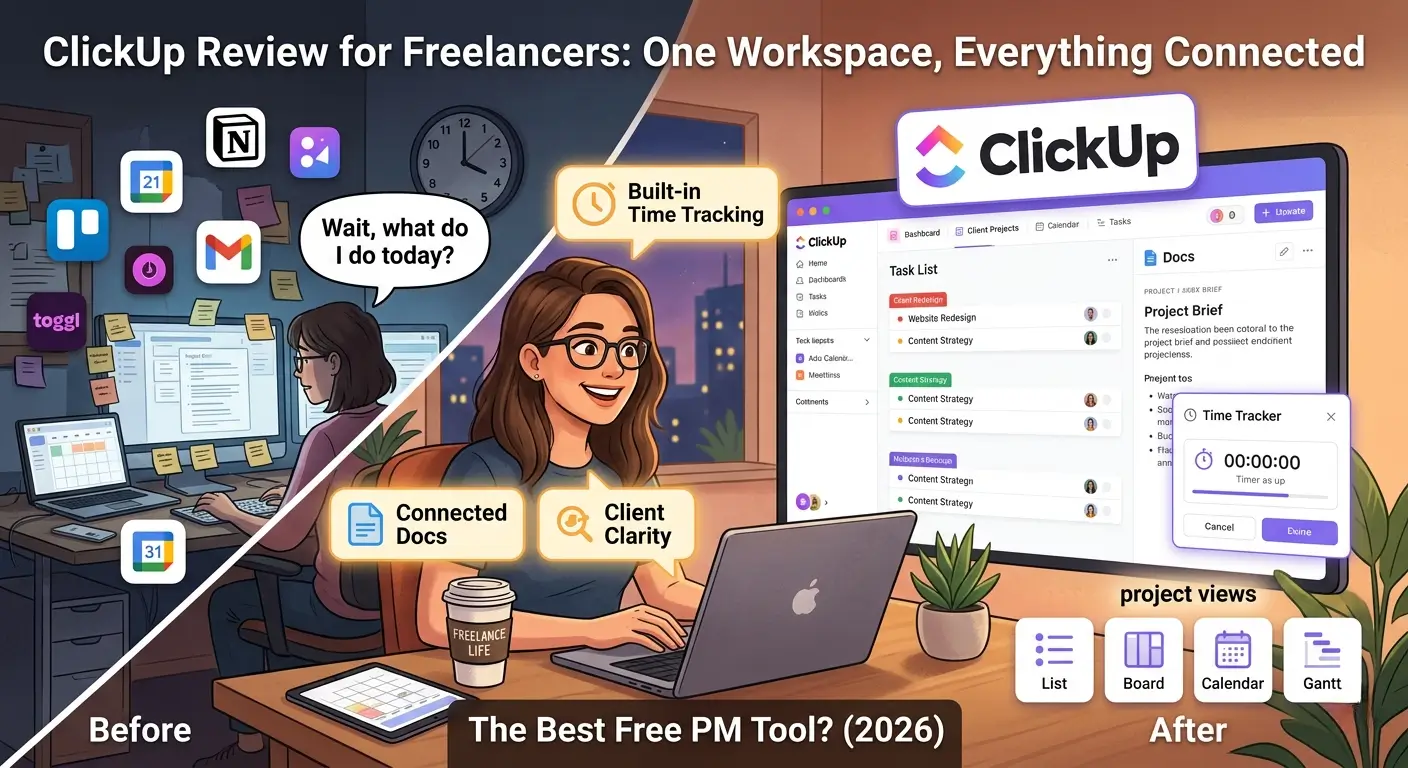
A freelance developer we know had a system that looked reasonable on paper. Trello for tasks. Notion for client docs. Toggl for time tracking. Google Calendar for deadlines. Gmail for everything else. Five apps, five tabs, five different places to check before he could answer the simple question: “What do I need to do today?”
One Wednesday he invoiced a client for 14 hours on a project. The client pushed back – their own records showed 9. He dug through Toggl, cross-referenced his Trello cards, checked his calendar. The discrepancy came from a task he’d tracked in Toggl but forgotten to add to Trello, so the hours weren’t attached to anything the client could see. He spent three hours sorting it out. Then he went looking for a better way.
Before – the five-App freelancer
Looking for the best clickup review for freelancers information? This guide gives you everything you need. We cover the top choices for clickup review for freelancers based on real testing, so you can pick the right option with confidence.
This guide covers everything about clickup review freelancers. Whether you are comparing options or looking for a detailed review, we break down the best clickup review freelancers options so you can decide with confidence.
Most freelancers don’t start with a broken system. They start with one app, then add another when a gap appears, then another, until they’ve built a patchwork that technically covers everything but requires constant maintenance to keep in sync. Tasks here, docs there, time in a third place, deadlines in a fourth. Each tool works fine on its own. Together they create something that takes more mental energy to manage than the actual work does.
The hidden cost isn’t just the monthly subscriptions adding up – it’s the context-switching. Every time you move between apps, you lose a thread. You update a task in Trello but forget to log the time in Toggl. You write notes in Notion but they’re not connected to the tasks they’re about. Your system slowly drifts out of sync with reality, and you don’t notice until something slips.
The standard fix is to try to integrate everything with Zapier. Which works, until a Zap breaks at 11pm the night before a deadline and you spend an hour troubleshooting instead of finishing the work.
After – one workspace, everything connected
Imagine opening one app and finding everything in it. Your tasks for each client organized by project. Your project briefs and client notes linked directly to those tasks. Your time tracker running inside the task you’re actually working on, not in a separate window. Your calendar view showing every deadline this week. Everything connected, everything searchable, and none of it requiring you to maintain five different systems at once.
That’s what a properly set up ClickUp workspace looks like. And unlike most “all-in-one” promises in software, this one is largely true – especially if you’re a solo freelancer who doesn’t need enterprise-level complexity.
Enter ClickUp
ClickUp launched in 2017 with a bold pitch: replace every productivity app you’re currently using. That kind of claim usually means marketing copy written by someone who hasn’t actually tested the competition. But after 90 days of using ClickUp on real client work – tasks, docs, time tracking, reporting – we can say it’s largely accurate for most freelance workflows.
What makes ClickUp different isn’t any single feature. It’s that it packs tasks, docs, time tracking, goals, whiteboards, and 15+ project views into one platform, and puts most of it on the free plan. No tricks, no “upgrade to access this basic thing.” The free tier is a real, working product – not a demo designed to frustrate you into paying.
Yes – ClickUp’s free plan is genuinely enough for most solo freelancers. You get unlimited tasks, unlimited members, built-in time tracking, 15+ project views, and a full document editor – all at $0. The main limits are 100MB of storage and 5 active integrations, neither of which most freelancers will hit regularly. Upgrade to Unlimited at $7/month only when reality gives you a reason to. For the vast majority of solo freelancers, free covers everything.
out of 5
Pros
- Most generous free plan of any PM tool – unlimited tasks and members
- 15+ views: List, Board, Calendar, Gantt, Mind Map, Whiteboard
- Built-in time tracking on all plans including free
- Custom fields, statuses, and dashboards even on free
- Docs and wikis built in – replaces Notion for most freelancers
- Frequent updates from an active development team
Cons
- Real learning curve – expect a few hours to get comfortable
- Mobile app noticeably slower than desktop
- No client portal like Monday.com has
- Advanced time reports locked behind Business plan
Real experience – 90 days on actual client work
We set up ClickUp for three different freelance profiles and used it daily for 90 days: a content writer managing editorial calendars across four clients, a web developer tracking feature builds and bug fixes for two retainer clients, and a business consultant running multiple engagements at once. All three started from the free plan. All three built their workspace from scratch. Here’s what actually happened.
Setup – worth the investment upfront
The initial setup takes longer than most tools. Expect to spend a genuine 2 – 3 hours getting your Spaces, Folders, and Lists organized in a way that makes sense for your work. ClickUp’s hierarchy – Workspace, Spaces, Folders, Lists, Tasks – gives you a lot of control, but that control requires upfront thinking about how you work. The good news: ClickUp’s onboarding templates for freelancers are solid and give you a real starting point rather than a blank screen. You’re not building from nothing.
The developer in our test had the most structured setup. He created one Space per client, with Folders for different project types and Lists for active sprints. It took him a full afternoon to configure. By week two, he told us it was the first time he’d felt genuinely in control of his workload in two years of freelancing. The upfront cost was real. So was the payoff.
Ease of use – honest about the learning curve
Let’s be straight: ClickUp has a learning curve. It’s not as steep as Jira, but it’s not as immediately navigable as Monday.com either. The sheer number of features visible in the interface can feel like a lot in the first few sessions. Most freelancers we worked with needed 3 – 5 days of regular use before they stopped reaching for the help docs.
After that adjustment period, something clicks. The interface starts to feel fast and natural. Switching views, filtering tasks, updating statuses – all of it becomes quick and intuitive. The payoff for the learning investment is a system that actually fits how you work, rather than a tool you’re constantly working around. That’s a meaningful difference over the long run.
Performance – strong on desktop, weaker on mobile
The desktop web app is fast and reliable. We didn’t hit any significant bugs across 90 days of daily use. Automations on the free plan – 100 runs per month – worked reliably throughout. The 5-integration limit on free is only a real constraint if you run complex multi-platform automations. Most freelancers need two or three integrations at most, which fits comfortably.
The mobile app is the weak point. It’s functional, but noticeably slower than the desktop version, and some complex views take a moment to render. For quick task status updates on the go it works fine. For serious project management from your phone, it falls short of Monday.com and Asana. If you do a lot of mobile work, that’s worth factoring in.
The practical win that actually mattered
The biggest real-world impact we saw was consolidation. The developer cancelled both his Toggl subscription and his Notion subscription within the first two weeks of using ClickUp. His time tracking lived inside his tasks. His documentation lived in ClickUp Docs, linked directly to those tasks. His workflow got simpler, not more complicated. That outcome – adding a tool and ending up with fewer tools – is genuinely rare.
The consultant found custom fields transformative for her billing workflow. She built a workspace where every task had fields for client name, project phase, billable hours, and invoice status. A simple filter gave her an instant view of every billable item not yet invoiced across all clients – something that used to take her 30 minutes to compile manually at month end. That time adds up across a year of freelancing.
What clickUp’s free plan actually includes
ClickUp’s Free Forever plan is one of the rare free tiers that doesn’t feel like a stripped-down demo. Here’s what’s genuinely included:
- Unlimited tasks – no cap, no “upgrade to add more”
- Unlimited members – add clients or collaborators at no cost
- 100MB storage – enough for docs, screenshots, and small files
- All 15+ views – List, Board, Calendar, Gantt, Timeline, Mind Map, Whiteboard
- Native time tracking – start/stop timers on any task, add manual entries
- Custom task statuses – change the defaults to match your real workflow
- Custom fields – add client name, invoice status, hourly rate, or anything else you need
- ClickUp Docs – full document editor with nested pages and real-time collaboration
- Dashboards (limited) – up to 100 dashboard uses to visualize your workload
- 5 active integrations – Google Calendar, Slack, GitHub, and more
For most solo freelancers, the 100MB storage limit is the only thing you’ll realistically bump into. If you’re attaching large design files or video deliverables directly inside ClickUp, you’ll hit it. For writers, consultants, developers, and coaches – the vast majority of freelancers – 100MB is workable. The practical workaround is simple: store large files in Google Drive and link them from ClickUp tasks. That combination covers almost every freelance workflow without needing a paid plan.
Key features worth understanding
15+ views – see your work the way you think
This is ClickUp’s clearest advantage over the competition. Most PM tools give you a task list and maybe a Kanban board. ClickUp gives you 15+ views on the free plan, all showing the same underlying data without any duplication. For day-to-day work, most freelancers live in the List view – fast, filterable, and sortable by deadline, priority, or any custom field. Board view works well for visual thinkers. Calendar view is essential for deadline-driven work – seeing everything across a month in one grid prevents the “three things due on Friday” surprise that derails a week.
The Gantt view earns its place on projects with dependencies – website builds where design must finish before development starts, for instance. The Whiteboard replaces FigJam or Miro for lighter collaborative sessions. The best part: every view is a different lens on the same tasks. Switch freely. No duplicate data, no maintenance overhead.
Time tracking – built in, not bolted on
Time tracking in ClickUp is native – not a Toggl integration added as an afterthought. Every task has a timer you start and stop with one click. You can add manual entries and set estimated hours per task, then compare estimates against actuals at the end of a project. For freelancers who bill hourly, this is a meaningful workflow improvement. The hours for Task X for Client Y are attached to that task, searchable, and exportable – without running a separate app alongside everything else. Detailed time reports across clients require the Business plan at $12/month, but the raw tracking is completely free.
ClickUp docs – your knowledge base, inside your workspace
ClickUp Docs is a full document editor built directly into your workspace. Think Notion pages, except inside your PM tool and connected to your tasks. You can write project briefs, client SOWs, meeting notes, process documentation, and style guides – all linked directly to the relevant tasks. A content writer can maintain a brand voice guide and reference it from every writing task. A consultant can keep a client knowledge base and update it after every session, with everything in one searchable place.
The connection between Docs and tasks is what makes this genuinely useful rather than just a nice-to-have feature. For most freelancers, switching to ClickUp means cancelling Notion – not because ClickUp Docs is objectively better than Notion in every way, but because good-enough docs inside your task system beats great docs in a separate tab for most practical workflows.
ClickUp pricing
ClickUp’s pricing is simple and genuinely competitive. All prices are per member per month, billed annually.
| Plan | Price | Key Features | Best For |
|---|---|---|---|
| Free ForeverStart Here | $0 | Unlimited tasks & members, 100MB storage, all 15+ views, time tracking, Docs, custom fields | Solo freelancers |
| Unlimited | $7/mo | Everything in Free + unlimited storage, unlimited integrations, unlimited dashboards, guest permissions | Growing freelancers hitting free plan limits |
| Business | $12/mo | Everything in Unlimited + advanced automations (10,000/mo), detailed time tracking reports, goals, custom exporting | Freelancers billing hourly across multiple clients |
| Business Plus | $19/mo | Custom roles, team sharing, priority support, admin training | Small agencies and teams |
Our recommendation: start with Free Forever and actually use it for 30 days. If you consistently hit the 100MB storage cap or need more than 5 integrations running simultaneously, upgrade to Unlimited at $7/month – that’s less than most streaming subscriptions and an easy call. Only move to Business if you need detailed time reports broken down by client and project for hourly billing. Business Plus is designed for agencies with teams, not solo freelancers.
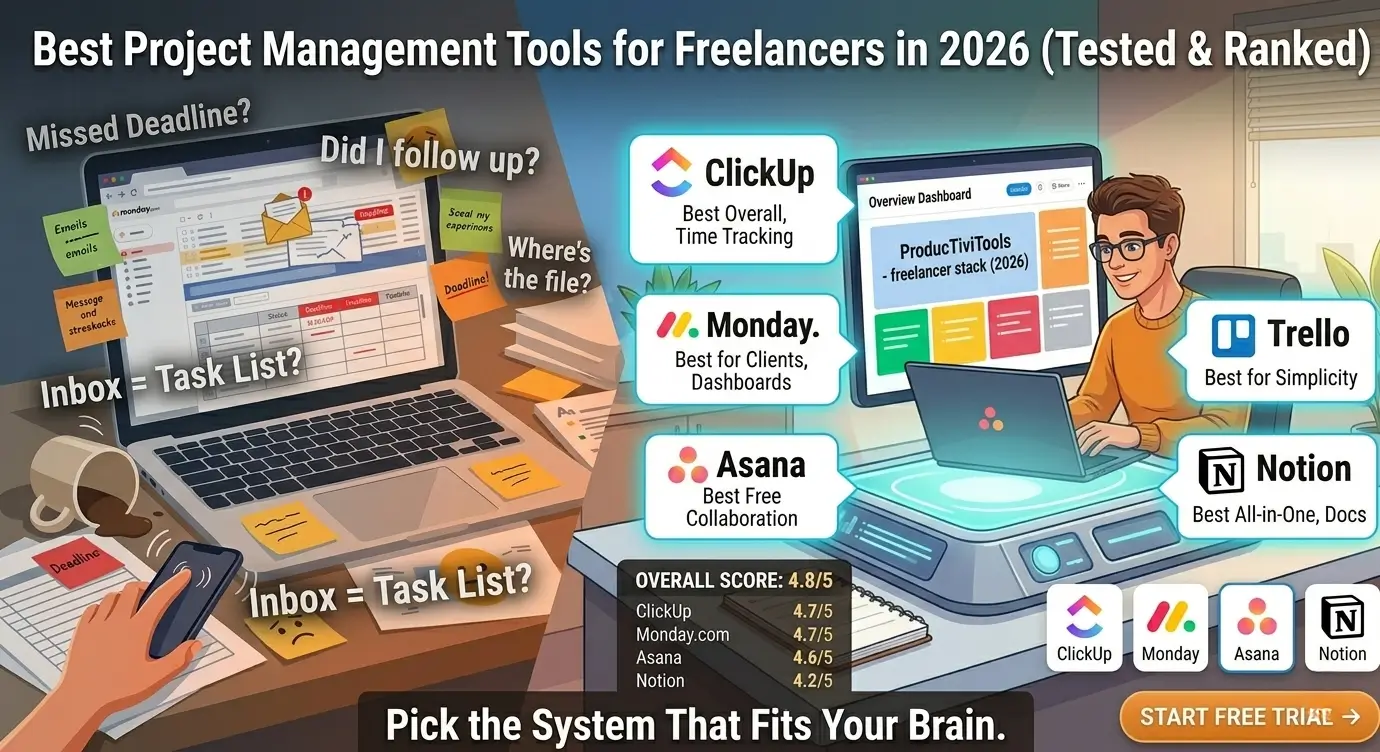
ClickUp vs Monday.com vs Asana
Here’s how ClickUp compares against its two biggest competitors on the features that actually matter for freelance work. We tested all three on the same project types over the same period.
| Feature | ClickUp | Monday.com | Asana |
|---|---|---|---|
| Free Plan | Generous Unlimited tasks + members | No free plan | Moderate Limited features |
| Starting Price (paid) | $7/mo per user | $9/mo per user (3-seat min) | $10.99/mo per user |
| Built-in Time Tracking | Yes – all plans | Pro plan only | Integration only |
| Number of Views | 15+ | 10+ | 8+ |
| Built-in Docs | Yes – full editor | Basic updates | Basic notes |
| Learning Curve | Steep | Easy | Moderate |
| Custom Fields (free) | Yes | Paid only | Paid only |
| Automations (free) | Limited (100/mo) | Paid only | Limited (250/mo) |
| Mobile App Quality | Good (can be slow) | Excellent | Excellent |
| Best For Freelancers | Solo & budget-conscious | Client-facing, visual | Simple task management |
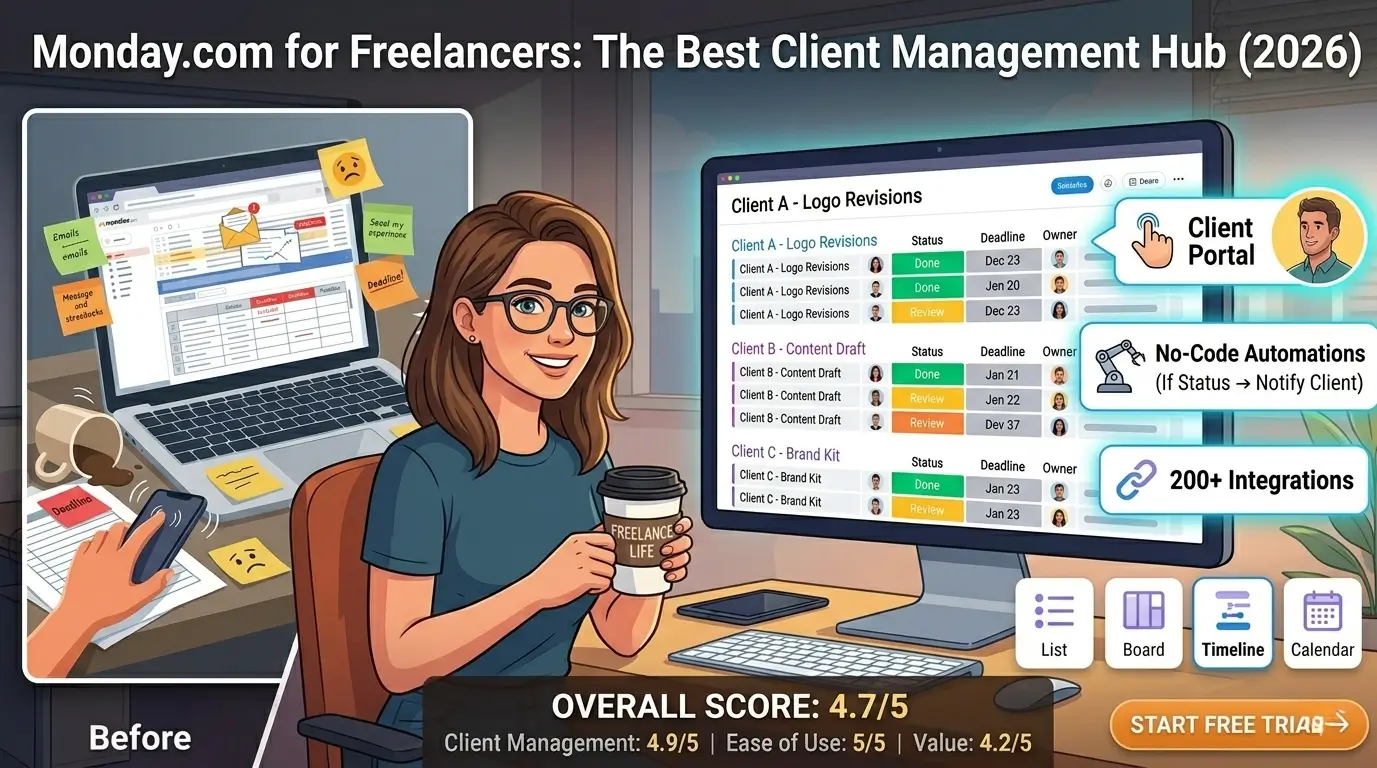
Monday.com is the more polished experience and its client portal is genuinely in a category of its own – but you’re paying at least $27/month before you get started. Asana’s free plan is decent but misses time tracking and custom fields. For a full head-to-head between those two, see our ClickUp vs Asana comparison. ClickUp wins the free-tier battle by a wide margin, and that matters when you’re building a freelance business and watching every dollar.
Honest pros and cons
What We Liked
- Free plan that genuinely works for real freelance use
- Time tracking built in – no extra app needed
- Custom fields let you track exactly what matters to you
- 15+ views on the free plan – more than any competitor
- ClickUp Docs can replace Notion for most freelancers
- $7/mo upgrade is easy to justify when you actually need it
What We Didn’t Love
- Initial setup takes real time and deliberate thinking
- Interface can feel overwhelming in the first week
- Mobile app noticeably slower than desktop
- No client-facing portal like Monday.com has
- Detailed time reports locked behind the Business plan
Who should use ClickUp – and who shouldn’t
Great fit if you…
- Want a genuinely free tool that handles real work
- Bill hourly and need built-in time tracking
- Currently use both Notion and a separate PM tool
- Work across many project types and need flexibility
- Are a developer, writer, consultant, or creative
- Want to consolidate your tool stack and lower your costs
Probably not for you if…
- You want the simplest possible setup with zero learning curve
- You do most of your project management from your phone
- You need a polished client portal out of the box
- You’re already deeply embedded in Monday.com
- You’re brand new to project management software entirely
ClickUp works especially well for freelancers who are willing to invest a few hours upfront to build a system that actually runs their business. If you want to be productive within 20 minutes of signing up, Monday.com is probably a better fit. If you want maximum capability at minimum cost and don’t mind the initial setup time, ClickUp is genuinely hard to beat.
Alternatives worth considering
If ClickUp’s learning curve feels like too much right now, Monday.com offers the most polished and intuitive interface in this space – it costs more, but you’ll be doing real work on day one. If you want something even simpler for basic task and deadline tracking without any setup complexity, Asana is clean and gets out of your way. For a detailed head-to-head between those two, see our ClickUp vs Asana comparison. And if you want everything ranked in one place with honest assessments, our best project management tools guide covers eight tools side by side.
Frequently asked questions
Why is clickup review for freelancers important for freelancers?
Understanding clickup review for freelancers is essential for staying competitive. The best clickup review for freelancers options in 2026 help freelancers save time, impress clients, and grow their income without working more hours.
How to get started with clickup review for freelancers?
Getting started with clickup review for freelancers is easier than most freelancers think. Start with a free trial of the top clickup review for freelancers options, test for one week, and upgrade only if it genuinely saves you time and impresses clients.
What do experts say about clickup review for freelancers?
Most productivity experts agree that clickup review for freelancers is a worthwhile investment for serious freelancers. The right clickup review for freelancers choice can add hours back to your week and significantly improve client satisfaction.
What is the best clickup review for freelancers?
The best clickup review for freelancers in 2026 combines ease of use, solid features, and fair pricing. After testing multiple options, the top picks for clickup review for freelancers stand out for freelancers who need reliability without complexity.
How do I find the right clickup review for freelancers?
Finding the right clickup review for freelancers starts with identifying your core needs. The best clickup review for freelancers options offer free trials, so you can test before committing. Look for clickup review for freelancers tools with strong user reviews and responsive support.
Is investing in clickup review for freelancers worth it?
Yes, finding a quality clickup review for freelancers is absolutely worth it. The right clickup review for freelancers saves freelancers hours every week and helps maintain a professional image with clients. Top clickup review for freelancers options typically pay for themselves within the first month.
What makes a good clickup review freelancers?
A good clickup review freelancers should be easy to use, affordable, and reliable. The best clickup review freelancers options in 2026 offer strong integrations and excellent support for freelancers.
How to choose the right clickup review freelancers?
Choosing the right clickup review freelancers starts with your workflow needs. Look for clickup review freelancers tools that offer a free trial so you can test before committing. The top clickup review freelancers picks on this list all have free tiers.
Is clickup review freelancers worth the investment?
Yes, finding the best clickup review freelancers is worth the investment. Top clickup review freelancers tools save freelancers 5+ hours per week, which quickly pays for itself in client hours recovered.
Final verdict
The best free project management tool for freelancers – and it’s not particularly close.
ClickUp is the best free project management option for freelancers in 2026. The free plan handles everything a solo freelancer realistically needs: unlimited tasks, multiple views, native time tracking, and built-in docs – without the artificial restrictions that make other free tiers feel like bait. The learning curve is real and we won’t pretend otherwise. But the payoff is a single workspace that can genuinely run your entire freelance business, and the $7/month upgrade is there when you actually need more.
If you want the most polished experience or need a proper client portal, Monday.com is worth the premium. But if your priority is maximum capability at minimum cost, start with ClickUp free and upgrade only when reality gives you a clear reason to.
Ready to simplify your freelance setup?
Join freelancers using ClickUp’s free plan to manage clients, track time, and do their best work – no credit card, no expiry date, no artificial limits on what matters.