The Automation Tools That Freed Up 10+ Hours a Week for Freelancers in 2026
Last updated: June 2026
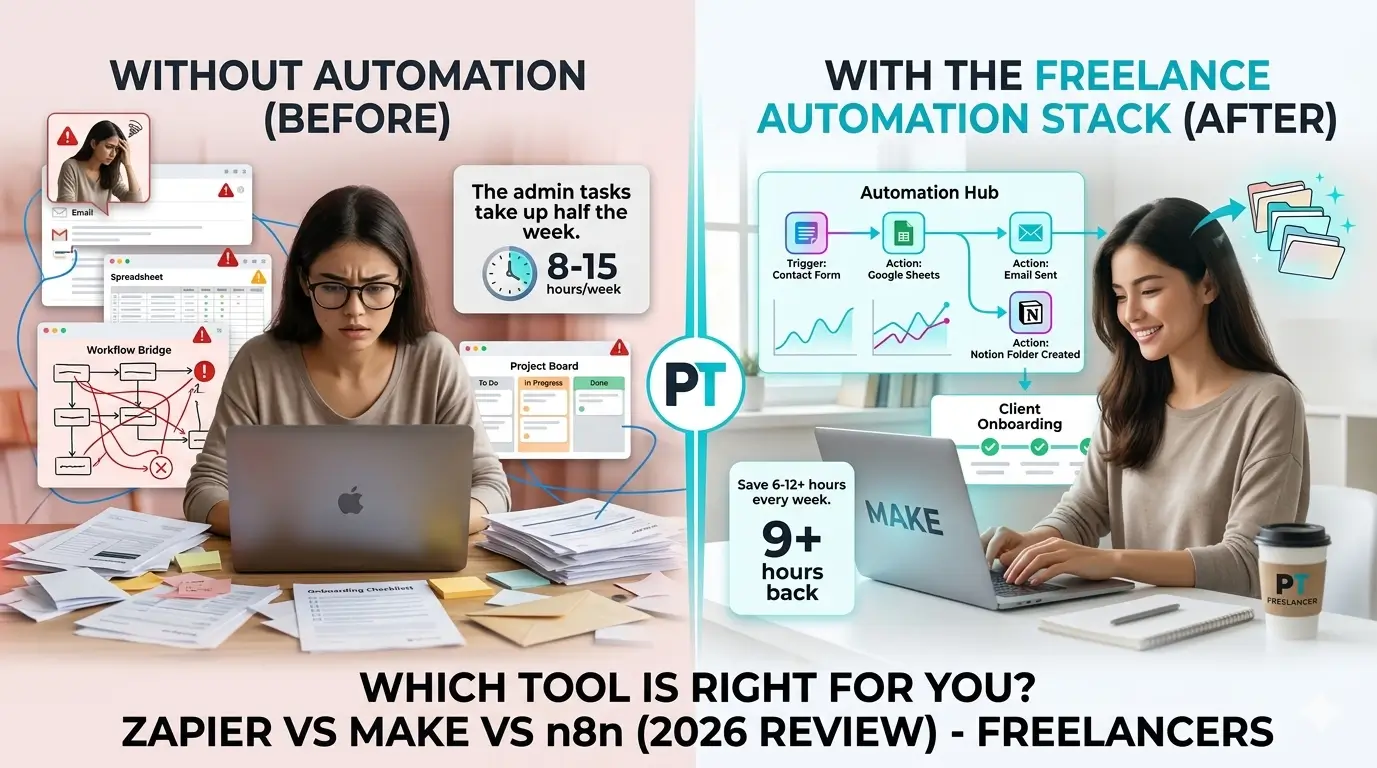
Most freelancers don’t have a skills problem. They have a time problem. The actual work – writing, designing, coding, consulting – takes up maybe half the week. The other half disappears into client emails, invoices, onboarding checklists, social media posts, and follow-ups that you never quite get to on time.
In this guide, you’ll learn what automation actually is and how it works (without any technical jargon), how to figure out what’s worth automating in your freelance business, and which tools are genuinely worth using in 2026. By the end, you’ll know exactly where to start – and you’ll have a clear recommendation based on your situation.
I’ve spent the past year testing these tools with real workflows: client onboarding, invoice follow-ups, social scheduling. Not demo scenarios – actual setups that run in the background while I work. Here’s what I found.
Real workflows only
We built actual automations for client onboarding, invoice follow-ups, and social media posting – not just demo scenarios.
Setup time measured
We tracked how long it took a first-time user to go from zero to a fully working automation.
Pricing tested thoroughly
We checked what you actually get on free tiers and exactly where each tool starts pushing you toward paid plans.
Freelancer apps only
We tested integrations with Gmail, Notion, Trello, Stripe, Calendly, Google Drive, and Slack – the apps freelancers actually use.
What is workflow automation?

Automation sounds technical, but the idea is pretty simple: you tell two apps to talk to each other, and define what should happen when something occurs. That’s it. No code, no servers, no engineering degree required.
Every automation has the same two pieces. A trigger – something that starts the process. And an action – what happens as a result. A new client fills out your contact form (trigger) → they receive a welcome email automatically (action). A project gets marked complete in your project tool (trigger) → an invoice goes out immediately (action). A new blog post is published (trigger) → it gets shared to LinkedIn and Twitter at once (action).
Once these things are set up, they run on their own, every time, without you thinking about them. That’s the whole idea.
Why this matters more for freelancers than anyone else
When you work at a company, someone else handles the admin. As a freelancer, you’re the whole team. You deliver the work, chase the invoices, manage client relationships, post on social media, and handle onboarding – all while actually meeting deadlines. The moment you stop, everything stops.
Most freelancers I’ve talked to lose somewhere between 8 and 15 hours per week to repetitive tasks like these. That’s a full working day, every single week, gone. Automation gives it back. The mental load alone – no longer having to remember every follow-up or manual step – is worth quite a bit by itself.
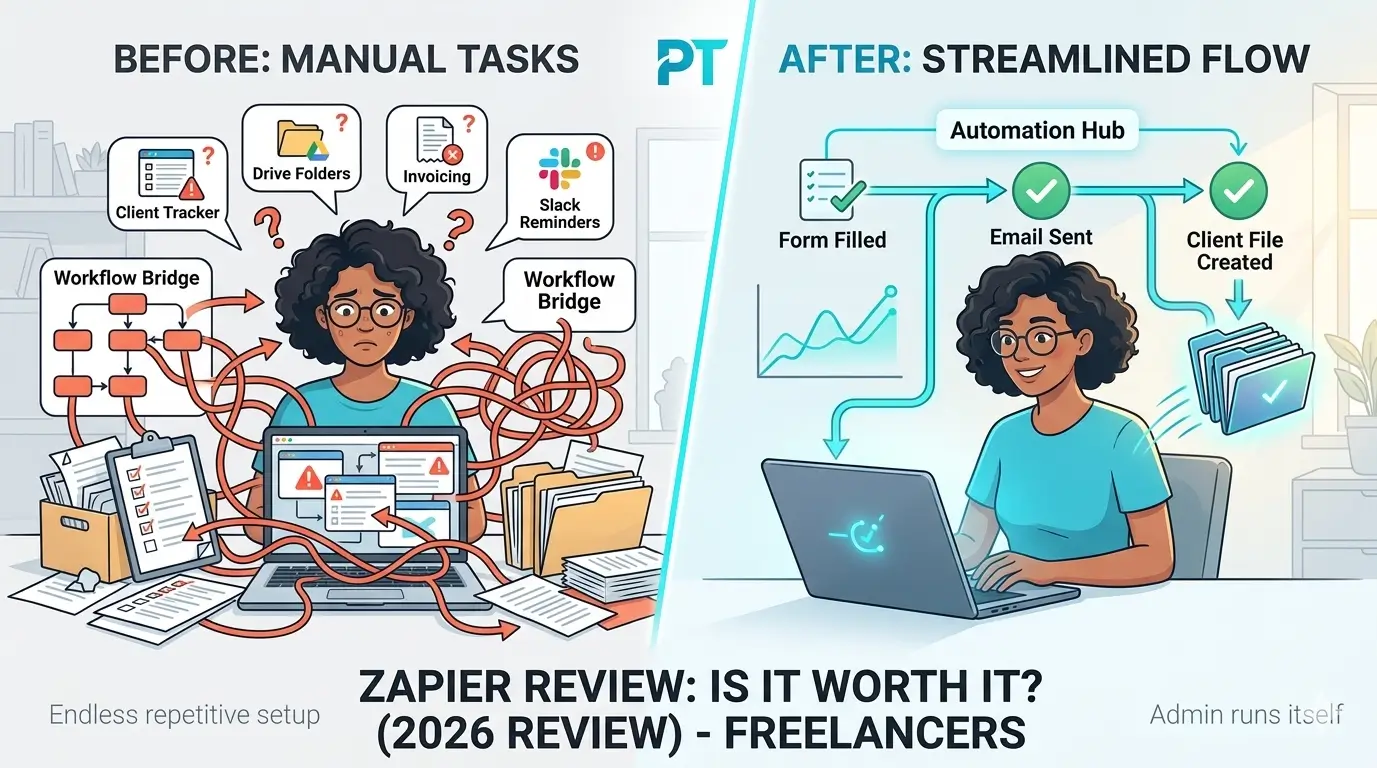
Client onboarding is a perfect example. Every new client means sending a welcome email, creating a project folder, adding them to your CRM, sharing a questionnaire, and scheduling a kickoff call. Five manual steps per client. With one automation, all of that happens the moment a contract is signed. Multiply that across 5 or 10 clients a month and you’re getting several hours back without changing how you work.
The common misconception about automation
A lot of freelancers assume automation is complicated, or that you need to be technical to use it. That was true five years ago. Today, tools like Zapier and Make are genuinely beginner-friendly. If you can use a website and drag things around a screen, you can build a working automation in under 15 minutes. The barrier is lower than most people think.
How to choose and start with automation tools
Knowing automation exists and actually building something useful are two different things. This section walks through the exact process – what to do at each stage, why it matters, what most people get wrong, and how to avoid it.
Identify what’s actually worth automating
Before you open any tool, spend 10 minutes making a list of everything you do repeatedly in your freelance business. Things like: sending follow-up emails, creating folders for new clients, posting to social media, generating invoices, logging hours, saving leads to a spreadsheet.
Automation without a clear target wastes more time than it saves. Most freelancers who give up on automation do so because they tried to automate everything at once and got overwhelmed. Picking one specific, repeatable pain point gives you a quick win and builds momentum.
Trying to automate a creative or judgment-heavy process first (like writing proposals or responding to complex client questions). Start with the dumb, repetitive stuff – the tasks that follow the same steps every single time.
A good first automation: when someone fills out your contact form, save their info to a Google Sheet and send them an automatic reply. Takes 10 minutes to set up, runs forever on its own.
Choose the right tool for your situation
Not every automation tool is right for every freelancer. The choice mostly comes down to two things: how comfortable you are with technology, and how much you’re willing to spend.
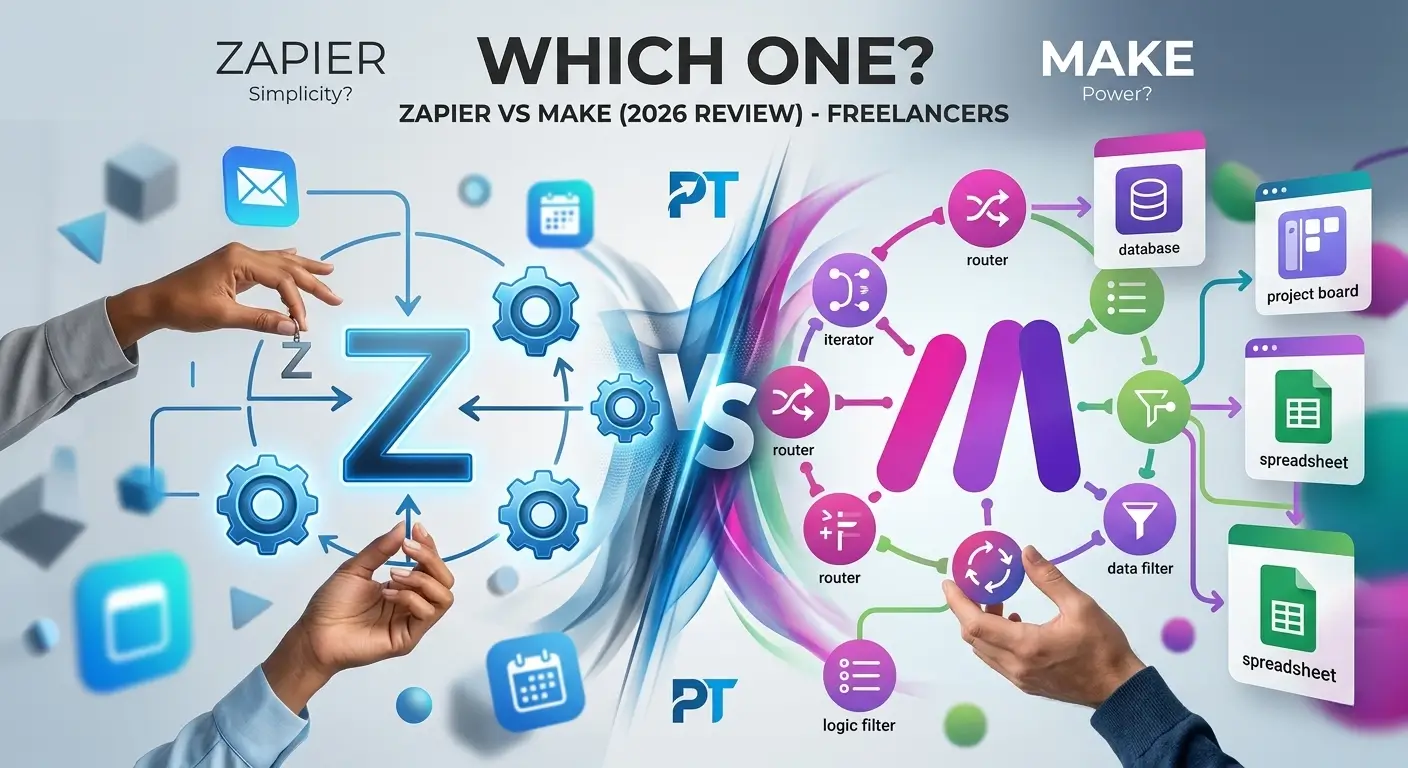
If you’ve never used automation before, start with Zapier. The interface is the simplest of any tool available, and there are thousands of templates that let you set up a workflow in minutes. The free tier is limited (5 automations, 100 tasks/month), but it’s enough to learn on.
If you want real power and better value, Make is the better long-term choice. It’s more capable than Zapier, significantly cheaper, and the free tier gives you 1,000 operations per month – enough to actually run your business on. The slight learning curve is worth it.
Using the wrong tool for your skill level leads to frustration and quitting. Zapier for beginners, Make for everyone else who sticks with it. Starting with the right fit makes the difference between actually using automation and abandoning it after a week.
Jumping straight to n8n or a self-hosted solution because it’s free. These options require server setup and technical knowledge that most freelancers don’t have. The time cost far exceeds any money saved, at least in the beginning.
If you’re undecided between Zapier and Make, check our Zapier vs Make comparison – it breaks down which one fits your workflow based on specific scenarios.
Build your first automation
Once you’ve picked a tool, resist the urge to build something complicated. Pick the single task you identified in step 1 and build only that. In Zapier, this is called a “Zap.” In Make, it’s called a “Scenario.” Whatever the tool calls it, the concept is the same: one trigger, one or two actions.
Test it with real data, not fake data. Most beginners test with placeholder entries and then wonder why it doesn’t work when an actual client fills out the form. Use your own email address to simulate a real submission and watch what happens.
Small, working automations beat ambitious, broken ones every time. One automation that runs reliably builds more confidence – and saves more time – than five half-finished workflows sitting in draft mode.
Building the automation and forgetting about it. Check on your automations once a week for the first month. App connections break occasionally (especially when tools update their APIs), and you want to catch errors before a client falls through the cracks.
Both Zapier and Make send email alerts when an automation fails. Make sure these notifications are turned on so you’re not flying blind.
Expand gradually based on what’s working
After your first automation has been running for a week or two, look at what it saved you and think about the next most annoying manual task. That’s your next automation. Build one at a time, let each one stabilize, and keep going from there.
Most freelancers with 5 to 8 working automations save 6 to 12 hours per week. Client onboarding is usually the biggest win, followed by invoice reminders and social media scheduling. These three alone cover the majority of repetitive admin work for most freelance businesses.
Automation compounds over time. The first automation saves an hour a week. The fifth saves a day a week. The key is building momentum through small wins instead of burning out trying to automate your entire business in a weekend.
Keep a simple log of which automations you’re running and what they do. After a few months, you’ll realize some are no longer needed (your process changed) and you can clean them up. A tidy automation setup is easier to maintain than a sprawling one.
The best automation tools for freelancers – honest reviews
Here’s where things get practical. Below are five tools I’ve actually used, with honest takes on what each one does well, where it falls short, and who it’s actually right for. No filler, no fluff.
1. Zapier – best for absolute beginners

5/5
3/5
4/5
2/5
Zapier is where most people discover automation, and there’s a good reason for that – it genuinely is the easiest tool on this list to use. You pick a trigger, pick an action, and you’re done. The interface walks you through every step, and you can have a working automation in under 10 minutes. For someone who has never done this before, that kind of hand-holding is exactly what you need.
The 6,000+ app integrations are also a real advantage. Whatever tools you already use as a freelancer, there’s almost certainly a Zapier connector for them. Gmail to Notion, Stripe to Slack, Calendly to Google Sheets – it’s all there. When you’re learning, not having to troubleshoot missing integrations saves a lot of frustration.
The downside is the price. The free tier gives you 5 Zaps and 100 tasks per month, which sounds fine until it runs out in the first week of actually using the tool. The Starter plan is $19.99/month, which isn’t outrageous on its own – but it’s hard to justify when Make gives you more capability for $9/month. Zapier is great for learning. It’s not the best long-term fit for most freelancers watching their expenses.
What Works
- Easiest setup experience of any tool here
- 6,000+ app integrations – the widest selection available
- Massive library of ready-made templates
- Extremely reliable – rarely breaks
What Doesn’t
- Free tier is genuinely too limited (5 Zaps only)
- Gets expensive quickly once you start scaling
- Less capable than Make for complex, branching workflows
Use Zapier to learn how automation works. Build 3 to 5 workflows on the free plan, get comfortable with the trigger-action concept, and then decide whether you want to stay or move to something cheaper and more powerful. Most people who stick with automation end up switching to Make.
Want the full picture? Check out our full Zapier review where we break down every pricing tier, real workflow examples, and who it’s actually worth paying for.
2. Make – best overall value for freelancers

4/5
5/5
5/5
4/5
Make (formerly Integromat) is the tool I personally use, and it’s what I recommend to most freelancers once they’ve gotten past the basics. It’s more powerful than Zapier, significantly cheaper, and the free tier is actually usable – 1,000 operations per month at no cost. That’s enough to run a real set of automations without ever pulling out your card.
The visual builder is what makes Make stand out. Instead of Zapier’s linear step-by-step flow, Make shows your entire scenario as a visual diagram. You can add branches, filters, loops, and error handlers – all drag and drop. It takes maybe an hour to feel comfortable with it, but once you do, Zapier starts feeling like driving with one hand tied behind your back.
The Core plan is $9/month for 10,000 operations – more than enough for most freelancers running 5 to 10 automations. Make also counts operations differently from Zapier’s tasks, so in practice you often get significantly more done per dollar. The math is hard to argue with once you run it out.
What Works
- 1,000 free operations per month – actually useful
- Visual builder makes complex scenarios easy to understand
- Much cheaper than Zapier ($9/mo vs $19.99/mo)
- Handles advanced logic: branches, loops, filters, error handling
What Doesn’t
- Slight learning curve compared to Zapier – plan for an hour to get familiar
- Fewer integrations than Zapier (1,500+ vs 6,000+)
- First login can feel overwhelming – the canvas is blank and intimidating
Make is the best automation tool for freelancers who want serious capability without the Zapier price tag. The free tier is genuinely useful, and $9/month covers everything most freelancers need. This is our top recommendation for anyone who’s moved past the beginner stage.
Read our Make review for a full walkthrough of Make’s visual workflow builder, or compare both tools side by side in our Zapier vs Make comparison to see which one fits your workflow.
3. n8n – best free option if you’re comfortable with tech

2/5
5/5
5/5
5/5
n8n is an open-source automation tool you can run on your own server for free – no monthly fees, no operation limits, no restrictions on workflows. If you’re comfortable renting a $5/month server on DigitalOcean or Railway and running a setup script, you essentially get everything Zapier and Make offer without the subscription.
I want to be honest about who this is actually for, though. Self-hosting requires a basic comfort with servers – SSH access, reading logs, understanding what a VPS is. The interface, while much improved over the past year, still feels noticeably more developer-oriented than beginner-friendly. For technical freelancers who genuinely hate subscriptions, it’s impressive. For everyone else, the time investment isn’t worth the money saved.
What Works
- Completely free when self-hosted – no limits at all
- Extremely powerful – supports custom JavaScript code
- Active open-source community pushing frequent improvements
- Full data ownership – nothing stored on third-party servers
What Doesn’t
- Requires server setup and maintenance to use for free
- Cloud version is $20+/month – not competitive with Make
- Steeper learning curve than Zapier or Make
- Fewer ready-made templates and less beginner documentation
If you’re technical and a monthly subscription genuinely bothers you, n8n is worth exploring. If managing a server sounds like an extra job on top of your actual job, skip it. Make at $9/month is a much better use of your time and energy.
4. Pabbly connect – best if you want to pay once

4/5
4/5
3/5
1/5
Pabbly Connect doesn’t come up as often as Zapier or Make in these conversations, but it has one thing neither of those offers: a lifetime deal. For a one-time payment of around $249, you get unlimited workflows and unlimited tasks, forever. No renewals, no price increases, no subscription anxiety. If you’re planning to use automation seriously for the next few years – and you should – the math is hard to ignore.
The tool itself is solid. Around 1,000 integrations, a clean drag-and-drop builder, and good multi-step workflow support. It’s not as powerful as Make for complex conditional logic, and it adds new app integrations more slowly. But for everyday freelance automations – client notifications, invoice triggers, form submissions – it does the job without any fuss. The main catch is there’s no real free tier, so you can’t try it before committing without actively hunting for a trial offer.
What Works
- Lifetime deal makes it exceptional value over 2+ years
- Unlimited workflows and tasks on paid plans
- Clean, easy interface – Zapier-level simplicity
- Good responsive support team
What Doesn’t
- No real free tier – hard to test before buying
- Fewer integrations than Zapier or Make
- Less capable for complex, multi-branch logic
- Smaller community and fewer tutorials to learn from
If the lifetime deal is still available when you read this, seriously consider it. Three years of Make’s Core plan runs about $324. Pabbly at $249 one-time is cheaper and the price never changes. The only reason to pass is if you need specific integrations Pabbly doesn’t support yet – check that list before buying.
5. Activepieces – the newcomer worth watching

3/5
5/5
3/5
4/5
Activepieces is the newest tool on this list, and it’s moving quickly. The free cloud plan gives you 1,000 tasks per month with no credit card required, and the interface is clean and modern – much closer to Zapier’s simplicity than n8n’s complexity. It won’t replace Make for advanced scenarios just yet, but for simple automations it feels polished and doesn’t have the half-baked quality you’d expect from a newer tool.
The integration library is the main limitation – around 200+ apps as of 2026. That covers the essentials: Gmail, Slack, Notion, Airtable, HubSpot. But check whether your specific tools are supported before committing. New integrations are being added regularly, and this is genuinely one to watch over the next year or two.
What Works
- 1,000 free tasks per month – no card needed
- Clean, modern interface that doesn’t feel overwhelming
- Open-source – can self-host for free if you want
- Frequent updates with new features and integrations
What Doesn’t
- Smaller integration library – verify your apps are supported
- Still maturing – some rough edges in less-used features
- Smaller community means fewer tutorials and templates to draw from
Worth trying if you want a free tool that looks and feels modern. Not as powerful as Make for complex workflows, but for simple automations it’s a solid zero-cost option. A good starting point for freelancers who just need the basics covered.
| Tool | Ease of Use | Value | Power | Free Tier | Starts At |
|---|---|---|---|---|---|
| Zapier | Limited | $19.99/mo | |||
| Make ★ | Generous | $9/mo | |||
| n8n | Unlimited* | Free (self-host) | |||
| Pabbly | None | $249 lifetime | |||
| Activepieces | Good | $7.50/mo |
* n8n unlimited free only when self-hosted on your own server
Which tool is right for you?
Honestly, it comes down to two things: where you are with automation right now, and how much you want to spend. Here’s a quick way to think about it.
You’ve never used automation before
Start with Zapier’s free plan. Build 2 to 3 simple workflows just to understand how trigger-action logic works. Then move to Make when you’re ready for more.
Start with Zapier
You know what you want and care about value
Go straight to Make. The free tier is generous, the tool is genuinely powerful, and $9/month is hard to argue against once you see what it can do.
Go with Make
You plan to use this for years and hate subscriptions
Check if Pabbly Connect’s lifetime deal is still running. If your key apps are supported, the one-time price beats years of monthly fees.
Consider Pabbly
One thing worth saying clearly: don’t try to automate everything at once. Pick one thing that wastes your time every single week – maybe it’s client follow-up emails, or manually posting the same thing to three different platforms – and automate just that. Once it’s running on its own, you’ll start seeing automation opportunities everywhere. That approach works far better than trying to build 15 workflows in a weekend and burning out before any of them are actually useful.
Frequently asked questions
Final thoughts
Automation won’t replace the creative work that makes you valuable as a freelancer. What it does is clear away the repetitive stuff that gets in the way of it. Client emails, invoice reminders, onboarding steps, social posts – once those are running on their own, you stop thinking about them. That mental space goes somewhere better.
If you’re starting from scratch, go to Make, create a free account, and spend 30 minutes building one automation for something you do manually every week. Don’t overthink which tool is perfect. Start with something simple, let it run, and see what happens. Most freelancers who do this once are building three more automations by the end of the week.
The tools are better than they’ve ever been, the free tiers are genuinely usable, and the learning curve is lower than most people expect. There’s really no good reason to keep doing this stuff by hand.
Pick one tool and spend 30 minutes building your first automation this week. Here are the two best starting points for most freelancers. — Start Free with Make or Try Zapier First.